The iPhone satellite icon signals that off-grid features may be available. Here’s what they do, which models support them and how to connect.
What the satellite icon tells you
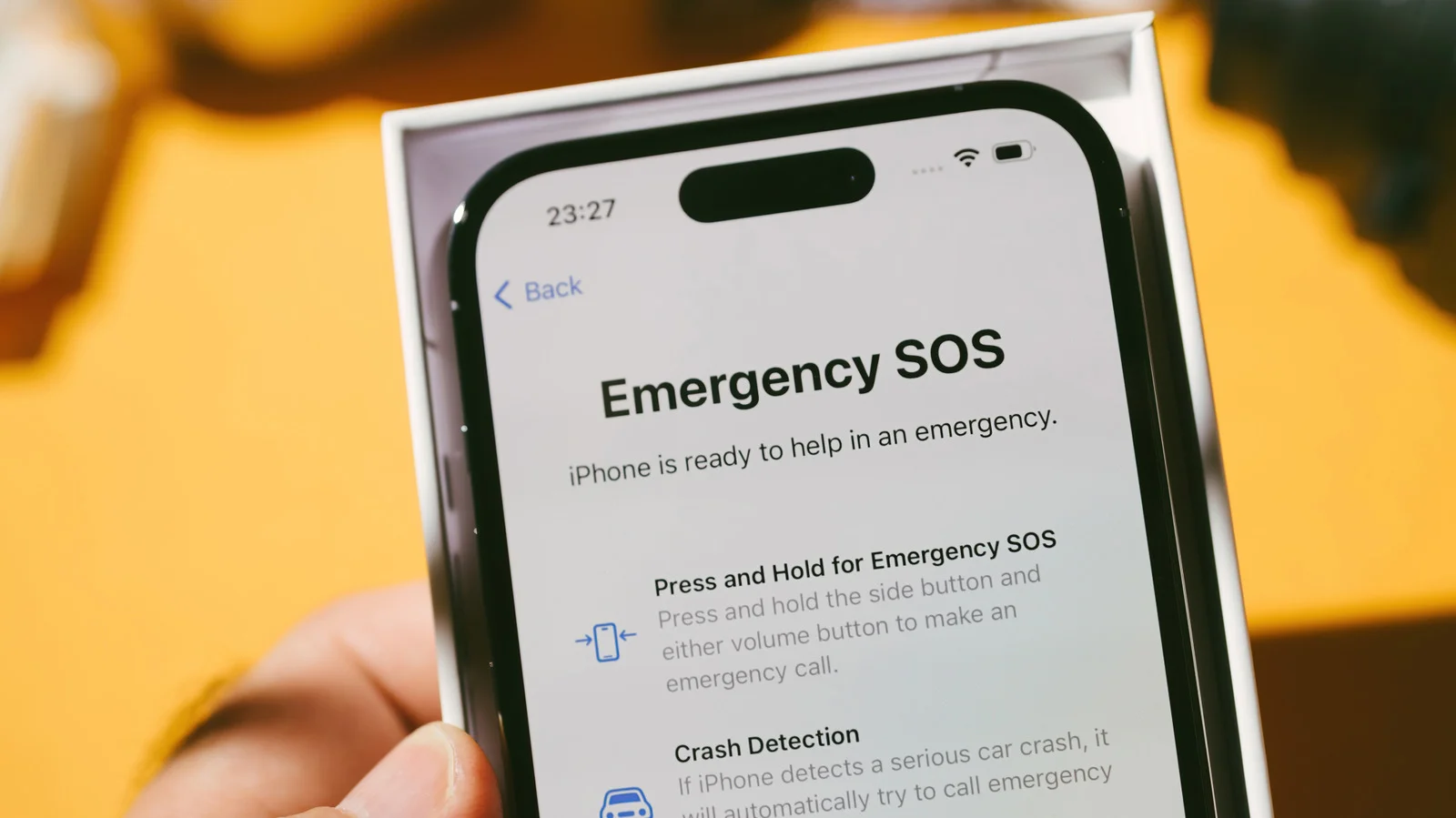
The satellite icon on an iPhone can point to a useful option when cellular service and Wi-Fi aren’t available. Depending on your location and the feature you need, the phone may let you connect to emergency services, send messages, request roadside assistance or share your location. Those functions can matter when a trip takes you beyond ordinary network coverage, but the icon is only a sign that satellite features are available in the area. It doesn’t, by itself, confirm that the phone has connected or that every satellite feature can be used.
That distinction is easy to miss. A separate “SAT” indicator means the iPhone is using satellite service from a carrier, while the satellite icon can appear when the phone is simply in a place where satellite features are available. Think of it as a prompt to check your options, not a connection status you can rely on without looking further. If you’re working out what the phone can do, the feature menu and the conditions around you matter as much as the icon.
Satellite capabilities require an iPhone 14 or newer, and availability varies by location. Apple lists supported areas across much of Europe and North America, as well as Japan; check Apple’s availability list for current coverage. Emergency SOS also has software requirements: iOS 16.1 or later in the U.S. and Canada, and iOS 17.6 or later in Japan. These details make a difference if you’re checking a phone before a trip or trying to understand why an option isn’t appearing. Having a compatible model doesn’t guarantee that a particular feature will be available wherever you happen to be.
For context on other indicators, see this guide to iPhone status icons and this explanation of the four dots by the Wi-Fi symbol. Satellite messaging can also work without cellular coverage or Wi-Fi. The wider point is that status icons summarize what a device may be able to do; they don’t always explain the conditions, limitations or steps involved.
Starting a satellite connection
To check the available features, open Control Center, tap the Cellular icon, choose Satellite and select what you need. You can also open Settings, tap Satellite and choose a feature there. The options won’t appear when the iPhone has a working cellular or Wi-Fi connection, so their absence in a connected place doesn’t tell you much about satellite availability elsewhere. If you’re trying to prepare in advance, it’s useful to know where the controls are before you need them.
The connection itself depends on the surroundings. You’ll generally need to be outdoors with a clear view of the sky; trees, hills, canyons and tall buildings can obstruct the signal. Messages sent by satellite take longer than ordinary cellular texts, which changes how you should think about the feature: it’s a fallback for places beyond standard network reach, not a drop-in replacement for everyday messaging. That delay may be inconvenient, but a connection that can carry a message when ordinary service is absent has a different job from a fast text exchange.
Apple recommends holding the iPhone normally and keeping it out of a pocket or bag while it connects. You don’t need to raise your arm, and the phone can remain connected after its screen locks. That’s practical guidance, since trying to keep the display awake or holding the phone awkwardly could add friction when you’re already dealing with poor service. Find open sky and follow the phone’s prompts. A simpler setup.
What the feature means when service drops
This is more significant than it looks: the satellite icon can help users recognize that a communication option may exist beyond the reach of local cellular and Wi-Fi networks. But the value depends on knowing what it signals and what it doesn’t. Availability isn’t the same as an active connection, and a compatible iPhone still needs the right conditions to communicate. The symbol is a useful starting point, not a guarantee.
For anyone relying on a phone during travel or in remote areas, the practical lesson is to learn the controls before a connection becomes urgent. Check that the model and software meet the stated requirements, understand which features are offered in the area, and remember that obstructions can affect the link. And this is the part most people overlook: a satellite option can be available while still taking more time and effort than a normal message. If you’re working in this space, that distinction is central to setting realistic expectations about what a phone can do when conventional service disappears.
Discussion
Sign in to join the discussion.