The phone-and-Wi-Fi icon signals Wi-Fi Calling. Learn what the feature needs, how to switch it on, and where Samsung hides its calling preferences.
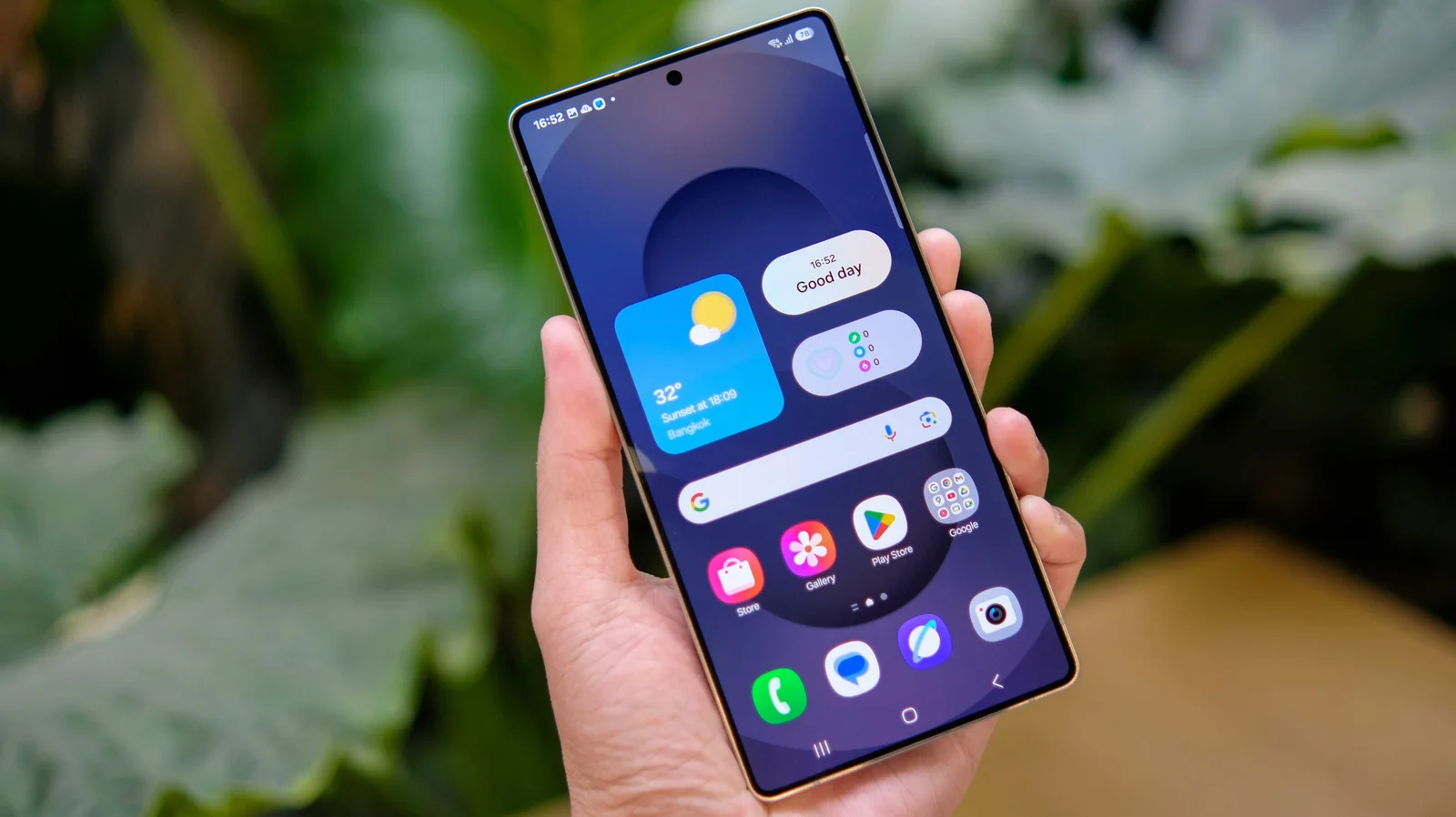
A phone handset with a small Wi-Fi mark in the status bar means Wi-Fi Calling is active on your Samsung phone. The feature routes calls and texts over Wi-Fi, which can keep you reachable in places where cellular reception is weak or unavailable. That can make a familiar home or office network useful when the phone’s cellular signal drops, provided the connection can carry a steady call. The icon is a status indicator, though—not a promise that the call will sound clear.
Wi-Fi Calling still depends on an active SIM card or enabled eSIM, and it needs a reliable Wi-Fi connection. It also has to be supported by your carrier and device software. The icon indicates the feature is enabled; it doesn’t guarantee that every Wi-Fi network will provide a strong enough connection for clear calls. If audio breaks up, the cause may be the network’s quality or congestion, even while the feature remains switched on.
Samsung phones display a range of status icons and indicators, and a few can be easy to confuse. Wi-Fi Sharing appears as two Wi-Fi marks facing sideways. The S Pen connection indicator shows a stylus beside two rounded bars. Each appears in the status bar, but neither signals Wi-Fi Calling. That distinction matters: one icon can tell you a feature is available or connected, while another identifies a separate phone function entirely.
Turn Wi-Fi Calling on or off
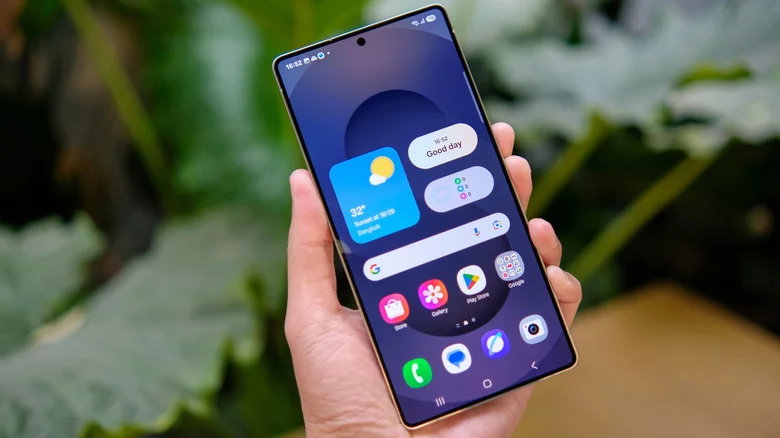
The main switch is in Samsung’s Connections settings. First, make sure a SIM is installed or an eSIM is active, then connect to Wi-Fi. Open Settings, choose Connections, and tap Wi-Fi Calling to change its status. The sequence is simple, but the available options can depend on whether the carrier and phone software support the feature. If the control is missing, that may be a carrier or software limitation rather than a problem with the Wi-Fi connection itself.
The Quick Settings panel may offer a faster route: swipe down twice from the top of the screen and tap the Wi-Fi Calling control. On some models, the option is also available in the Phone app’s settings menu, opened through its three-dot button. Samsung’s menus can vary by model and software version, so the labels and shortcuts may not match exactly from one device to another. Here’s the thing: checking the main Connections menu is usually the clearest way to confirm the feature’s status.
Carrier settings and call preferences
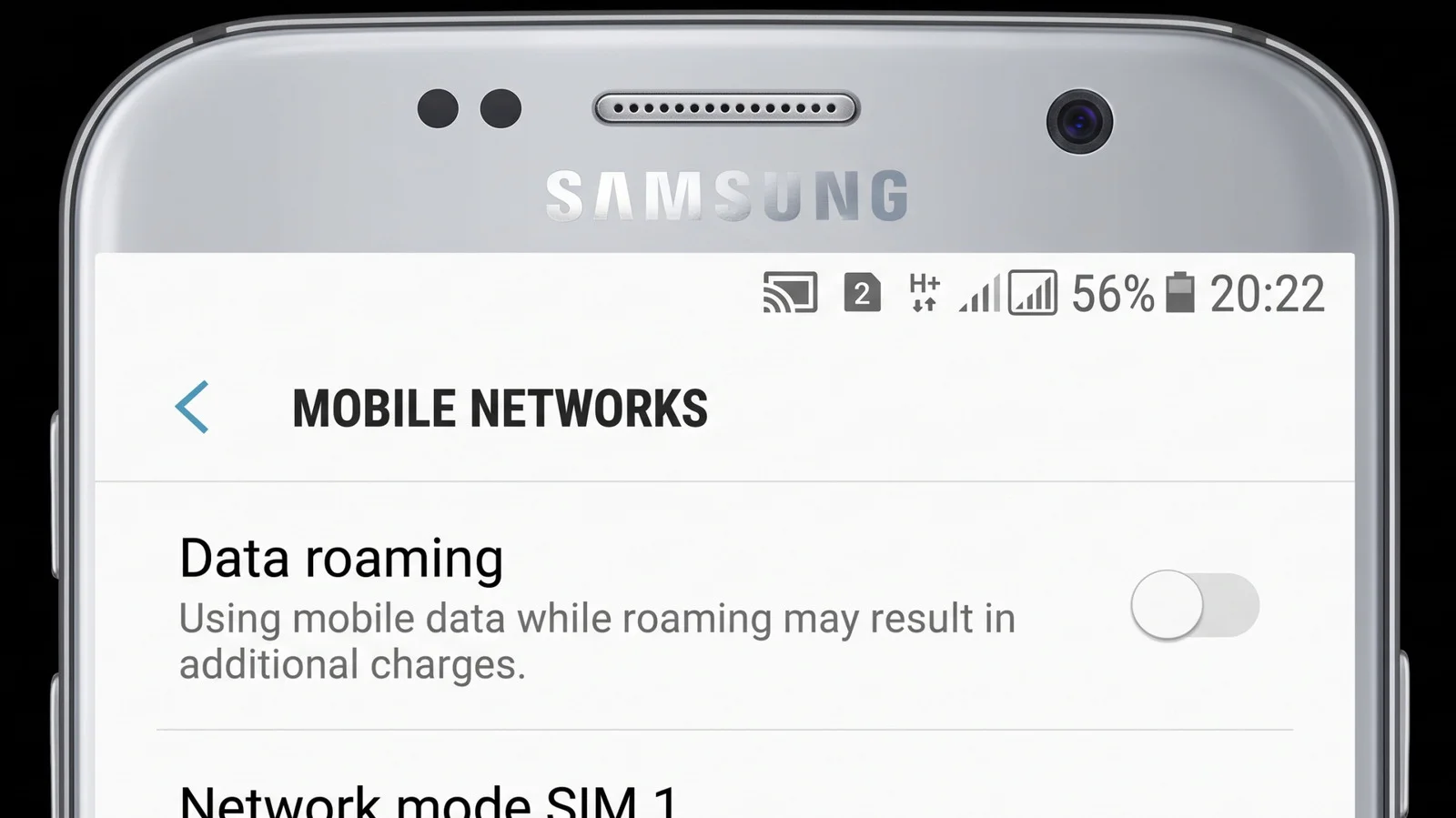
Carrier requirements can add another step. AT&T customers, for example, need VoLTE enabled before switching on Wi-Fi Calling. VoLTE, or “Voice over Long Term Evolution,” is a calling feature that can improve call quality; its switch is also found under Connections. This is a reminder that Wi-Fi Calling isn’t controlled by the phone alone: the carrier’s service and settings are part of the setup, too.
Carrier menus vary, so the calling preferences may appear inside the Wi-Fi Calling screen or under an option such as Roaming network preference or When Roaming. Those controls let you set whether the phone favors Wi-Fi or cellular calling when both are available. The same settings may also let you update the address your carrier has on file for emergency calls. If you’re working through a setup issue, check the carrier-specific instructions before assuming the status icon means every calling preference is configured as you want.
What the icon tells you—and what it doesn’t
The handset-and-Wi-Fi mark is useful because it makes the feature’s status visible at a glance. This is more significant than it looks when cellular coverage is unreliable: you can tell the phone is configured to place calls over Wi-Fi without opening settings each time. But the icon can’t report the quality of the connection, confirm that a particular call will stay on Wi-Fi, or explain why a call sounds poor.
And yet, that limitation is easy to overlook. Wi-Fi Calling depends on several pieces working together: an eligible carrier account, active SIM or eSIM, compatible software, and a Wi-Fi connection with enough stability for voice traffic. A weak or interrupted connection can undermine the experience, even when the status bar appears reassuring. In short, enabled. Not guaranteed.
For everyday troubleshooting, start with the visible basics: confirm Wi-Fi Calling is switched on, make sure the phone is connected to a reliable network, and review carrier requirements such as VoLTE where applicable. If you're relying on the feature in a location with poor cell service, those checks can help distinguish a setup issue from a weak Wi-Fi signal. The icon is a useful clue, but the call itself remains the real test.

Discussion
Sign in to join the discussion.