The triangle symbol on Samsung devices indicates either Data Saver activation or a notification of concern, depending on its specific appearance.
The triangle icon on Samsung smartphones is more than just a simple shape; it signifies important functions and alerts that users should be aware of. Understanding its meaning enhances user experience and can help in managing device settings effectively.
Data Saver Feature
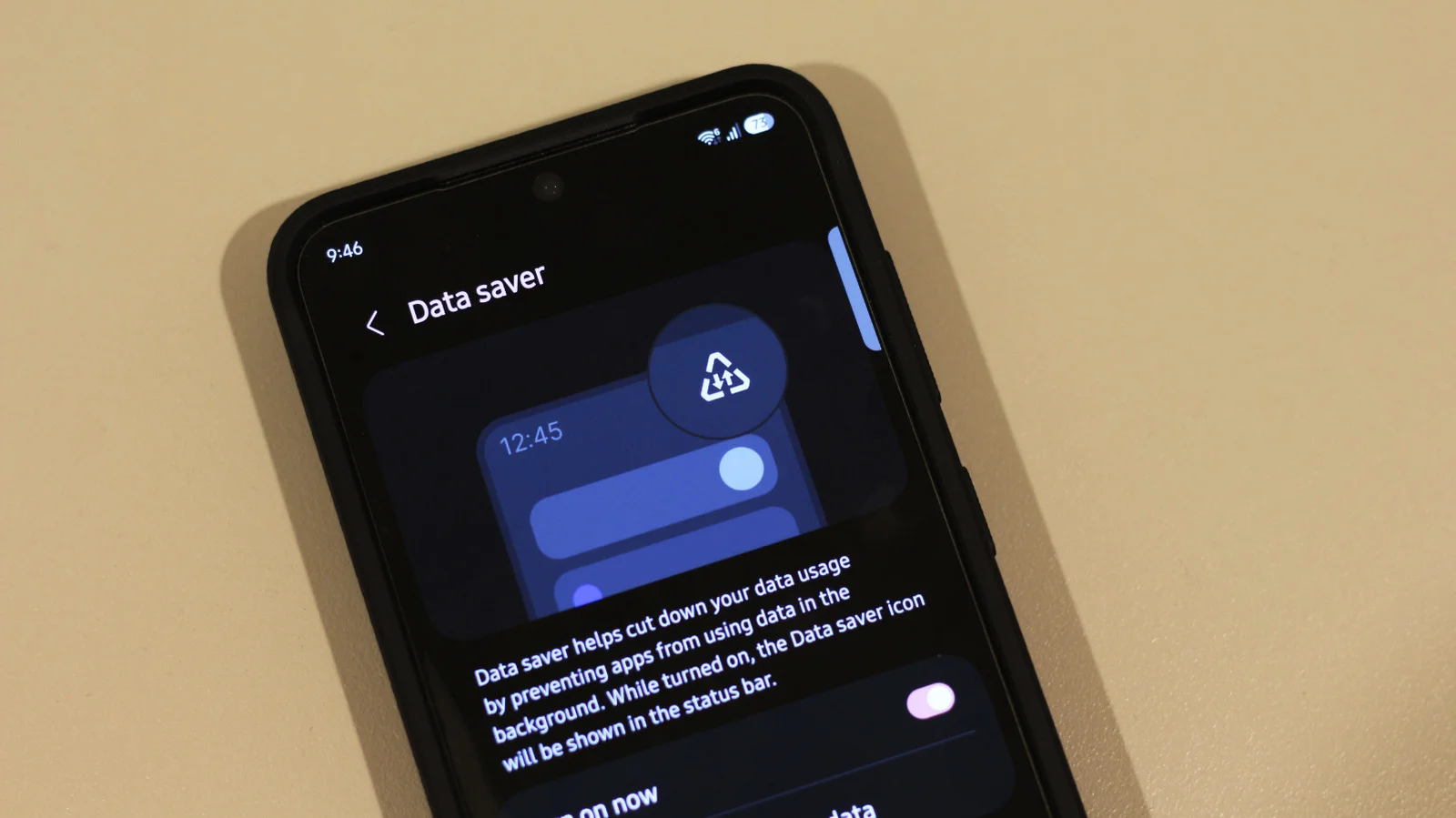
If you see a triangle symbol on your Samsung device, one of the most likely explanations is the activation of the Data Saver feature. This feature restricts background data usage, allowing you to conserve mobile data, which can be critical for users with limited plans.
When enabled, the triangle icon may display two arrows within it, pointing up and down. This visual is a clear indicator that your phone is currently managing which apps can use data while not in active use. If your phone uses data in the background, it can lead to unnecessary charges and slower speeds overall.
For customization, go to Settings > Connections > Data usage > Data saver. You can also adjust the allowlist to permit specific apps to continue using data, which can be helpful for messaging or email notifications that might be important.
Warning Significance
However, the presence of a triangle doesn’t always point to Data Saver. If the icon persists even after disabling it, it may be a cautionary sign indicating that your device needs immediate attention. Android systems utilize a triangle with an exclamation mark as a universal warning symbol.
This emblem alerts users to various issues—ranging from inadequate storage space and connection problems to software update failures. To find out more details, simply swipe down your notification panel. Here, tapping the warning will provide specific guidance on the action required. Common troubleshooting steps may include restarting the device or freeing up storage space by removing unused applications.
Third-Party App Notifications
Another misinterpretation of the triangle icon could stem from third-party applications. Unlike iOS, Android apps can display their own icons in the status bar, which could lead users to confuse these notifications with system alerts.
To identify which application might be responsible for the triangle icon, swipe down to access your notifications. If you discover an app notification matching the symbol, it’s likely that the app is trying to inform you about something. If it’s not relevant, you can easily turn off notifications for that app by navigating to Settings > Notifications > App notifications, selecting the specific app, and disabling alerts.
Diagnosing Charging Issues
If the triangle icon appears when charging, it may mean there’s an issue with your charging setup. This could indicate a malfunctioning adapter or USB cable. Testing with alternative charging equipment can help diagnose whether the issue lies with the accessories or the device itself. If changing the charger doesn’t rectify the situation, contacting Samsung support might be advisable to check the status of the phone's USB-C port.
Recognizing Other Icons
Beyond the triangle, Samsung devices come with various other symbols that may not be familiar to all users, especially those transitioning from different operating systems. For instance, a small upside-down teardrop symbol signifies that an app is currently accessing your location.
A key icon indicates an active VPN connection—useful for privacy, but perhaps concerning if set unintentionally. Accessing and disabling active VPNs can be done through Settings > Connections > More connection settings > VPN.
Lastly, the Do Not Disturb icon, characterized by a circle with a horizontal line, serves to mute all incoming alerts and calls. While beneficial during focused work or meetings, this feature must be monitored to ensure critical communications are not missed. You can customize which contacts are exempt from the Do Not Disturb status via Settings > Notifications > Do Not Disturb.
Understanding the meanings behind these icons enhances usability and ensures users can maximize their Samsung device experience while minimizing frustrations.
Discussion
Sign in to join the discussion.